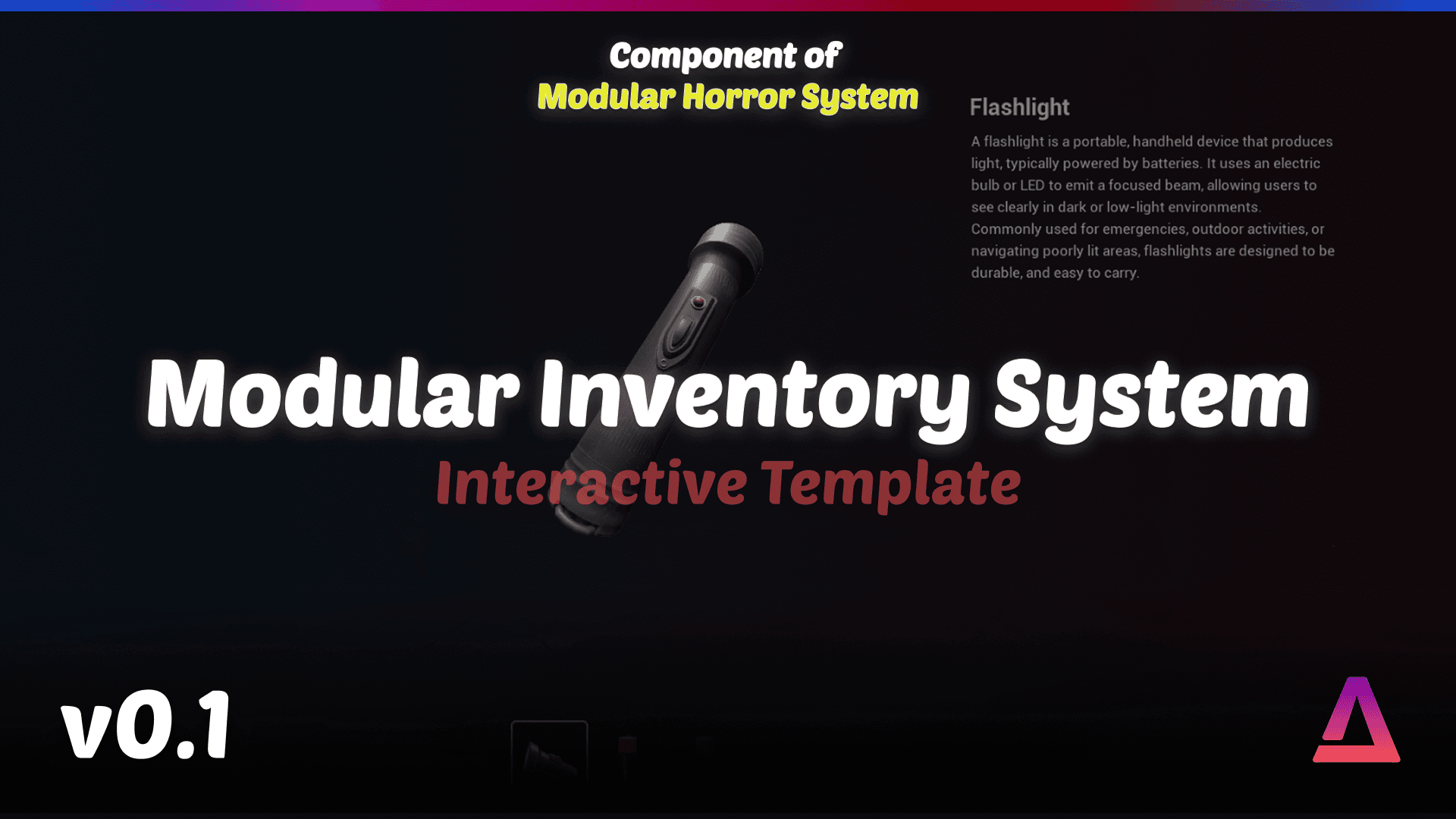
Modular Inventory System
A lightweight, Blueprint-based inventory built for the Modular Horror System. Features a scrolling UI, item pickup/use, and easy data table integration. Works standalone or as part of the full system.
Modular Inventory System Documentation
A lightweight, Blueprint-based inventory built for the Modular Horror System. Features a scrolling UI, item pickup/use, and easy data table integration. Works standalone or as part of the full system.
Quick Start
- Import the System: Import the Modular Inventory System into your Unreal Engine 5.6 or 5.7 project
- Add BP_Inventory: Drop the BP_Inventory blueprint into your player or level
- Place Items: Place BP_ItemPickup actors around your level
- Configure Items: Assign item types via exposed variables on BP_ItemPickup
Blueprint Systems
BP_Inventory
Core manager handling items, inputs, and UI updates.
Features
- Manages all inventory items
- Handles input for inventory interactions
- Updates UI automatically
- Connects to BP_ItemPickup actors automatically
Usage
- Drop BP_Inventory into your player blueprint or level
- The inventory will automatically connect to BP_ItemPickup actors in the world
- Configure inventory settings in the Details panel
BP_ItemPickup
Actor class for world items that auto-connects to the inventory manager.
Features
- Automatically connects to BP_Inventory manager
- Exposed variables for easy item configuration
- Supports item type assignment
- Pickup detection and interaction
Configurable Variables
- Item Type - Assign the item type from your DataTable
- Pickup Range - Distance at which item can be picked up
- Auto Pickup - Whether item is picked up automatically or requires interaction
Usage
- Place BP_ItemPickup in your level
- Assign the item type via exposed variables
- Configure pickup behavior (auto vs. manual)
- Item will automatically connect to BP_Inventory when placed
BP_Use_Resource
Base logic for items that can be used or consumed.
Features
- Base class for usable/consumable items
- Event-driven use system
- Resource type support
- Custom use behavior hooks
Usage
- Create a child blueprint of BP_Use_Resource
- Implement custom use logic in the child
- Use the "Event Use Resource" event to trigger item usage
- Connect to your game's interaction systems
WBP_Inventory
Horizontal scrolling UI displaying current items.
Features
- Horizontal scrolling inventory bar
- Clean, minimal design
- Real-time item display
- Use icon for resource items
Usage
- The UI is automatically managed by BP_Inventory
- Items appear in the inventory bar as they're picked up
- Click items to use them (if they're usable)
- Resource items show a custom use icon
DataTable Structure
The inventory system uses a DataTable to manage all item data.
DataTable Fields
- Item Name - Display name of the item
- Description - Item description text
- Thumbnail - Item icon/image
- Type - Item type (e.g., resource, tool, key)
- Use Behavior Reference - Reference to use behavior blueprint
- Max Stack - Maximum stack size (placeholder for future functionality)
Creating Items
- Open your DataTable in Unreal Engine
- Add a new row for each item
- Fill in all required fields
- Assign the item type (resource, tool, etc.)
- Reference use behaviors if needed
Integration
Standalone Usage
- Import the Modular Inventory System
- Add BP_Inventory to your player or level
- Place BP_ItemPickup actors in your level
- Configure items via DataTable
- Start using the inventory system
With Modular Horror System
- Import both systems
- The inventory automatically integrates with the Modular Horror System
- Use items with the full interaction system
- Connect use behaviors to horror system interactions
Connecting Use Behaviors
- Create a child blueprint of BP_Use_Resource
- Implement your custom use logic
- Use the "Event Use Resource" event inside the child
- Connect to interactive item logic
- Assign the use behavior reference in the DataTable
Notes
Max Stacks
Max stacks are currently non-functional but included for future updates/custom expansion. The placeholder is in place for when stacking functionality is added.
Design Philosophy
This inventory is intentionally minimal and is ideal for projects that favor atmospheric pacing over heavy inventory micromanagement. The design prioritizes:
- Clean, unobtrusive UI
- Quick item access
- Simple pickup/use mechanics
- Easy integration
FAQ
How do I add new items?
- Add a new row to your DataTable
- Fill in all item fields (name, description, thumbnail, type)
- Place a BP_ItemPickup actor in your level
- Assign the item type from the DataTable to the pickup actor
Can I use this without the Modular Horror System?
Yes! The Modular Inventory System is fully standalone and can be used independently.
How do I create custom use behaviors?
- Create a child blueprint of BP_Use_Resource
- Implement your use logic
- Use the "Event Use Resource" event to trigger actions
- Reference the blueprint in your DataTable
What's the difference between regular items and resources?
Resource items show a custom use icon and have special use behavior. They're designed for consumable items like batteries, health packs, etc.
Support
- Discord: Join our Discord server for community support
- Documentation: This documentation is continuously updated
- Video Tutorials: Coming soon