
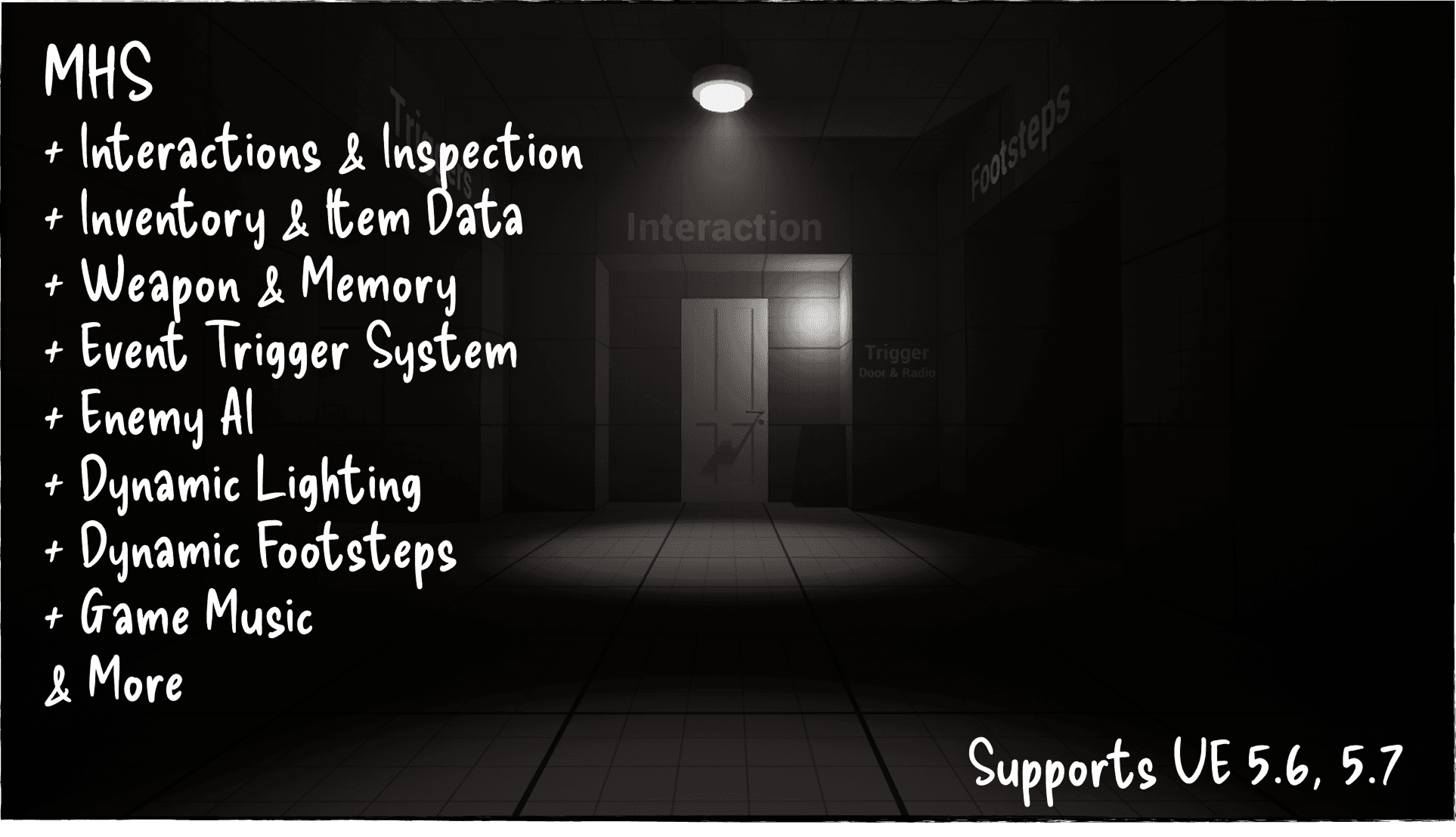
Modular Horror System
Powerful toolkit for Unreal Engine 5 (5.6 & 5.7) — built to help indie developers, solo creators, and prototypers jumpstart immersive horror experiences with minimal setup.
Modular Horror System Documentation
The Modular Horror System (built with blueprints) is a flexible and highly customizable toolkit designed to help you kickstart your horror game development. This system includes essential features such as enemy AI, dynamic lighting, footstep sound effects, and camera effects. It also comes with a demo map to showcase each feature in action, allowing for a quick setup and understanding of how to integrate these mechanics into your own project.
Technical Details
UE Versions
- Unreal Engine 5.6
- Unreal Engine 5.7
Number of Blueprints
- 70+ Classes
- 14 Structures
- 4 Enums
Input
- Keyboard and Mouse
Quick Start
- Import the System: Import the Modular Horror System into your Unreal Engine 5.6 or 5.7 project
- Open the Demo Map: Navigate to the demo map to see all systems in action
- Review Blueprints: Each system is modular and can be used independently
- Customize: Adjust configurable variables to match your game's needs
Blueprint Systems
BP_Light (Lighting Blueprint)
The lighting system allows for dynamic and flexible control of light properties, enabling a variety of horror lighting effects, such as flickering and changes in intensity.
Configurable Variables
- Powered? (Boolean) - Toggle the light on or off
- Intensity - Controls the brightness of the light
- Radius - Defines the light's attenuation radius
- Volumetric Intensity - Adjusts the volumetric fog contribution for atmospheric effects
- Light Color - Easily change the light color via the variable
- Light Sound - Play sounds such as buzzing or flickering noises with the light
- Flicker (Boolean) - Toggle flickering behavior on or off
- Flicker Duration (Min/Max) - Control the random flicker speed between the minimum and maximum duration to create a natural flicker effect
Usage
- Place the BP_Light blueprint in your level
- Adjust the configurable variables in the Details panel
- Enable Flicker for dynamic horror lighting effects
- Set Light Sound to add atmospheric audio cues
BP_AI (Enemy AI Blueprint)
This blueprint controls the enemy behavior, including vision, hearing, movement, and roaming capabilities. It also interacts with the player through noise detection and line of sight.
Configurable Variables
- Can Roam? (Boolean) - Enable/disable the enemy's ability to roam around the environment randomly
- Can Hear? (Boolean) - Toggle the enemy's ability to hear player noises
- Can See? (Boolean) - Toggle the enemy's vision to detect the player
- Speed - Controls how fast the enemy moves when patrolling or chasing the player
- Roam Radius - Defines the roaming area size where the enemy can randomly patrol
- Roam Wait Duration - Time between random roaming behavior for more natural movement patterns
- Tracking Player? (Boolean) - Toggles when the enemy detects and follows the player
- v0.9:
dead- Dead state variable that prevents attacks once an enemy is marked as dead - v0.9:
deathDuration- Configurable time before enemy is destroyed (if ragdoll is disabled) - v1.0:
Constant Patrol- When enabled, the AI loops patrol nodes continuously instead of stopping at the final node - v1.0: BP_PatrolNode - Place one or more patrol nodes and connect them to BP_AI for scripted routes (per-node behavior, optional shuffle)
Improvements (v0.9)
- Improved Movement: Enhanced enemy AI movement and rotation behavior
- Death Handling:
- Checks for ragdoll on death
- If enabled, enemy ragdolls
- If disabled, enemy is destroyed after
deathDuration
- Dead State: Prevents attacks once an enemy is marked as dead
- Removed Debug Logic: Cleaned up debug code for better performance
- Fixed Destruction: Resolved issue where AI was not being destroyed properly on death
Improvements (v1.0)
- Patrol Routes: Single- or multi-node paths via BP_PatrolNode, integrated per BP_AI instance
- Unreachable Player: If the AI cannot reach the player, it resumes patrol when nodes exist; otherwise it falls back to roaming
Usage
- Place BP_AI in your level
- Configure detection settings (Can See, Can Hear)
- Set Roam Radius to define patrol area (when not using patrol nodes)
- v1.0: Add BP_PatrolNode actors and link them to BP_AI for fixed routes; enable Constant Patrol for continuous loops
- Adjust Speed based on your game's difficulty curve
- Enable Tracking Player for chase sequences
- v0.9: Configure death behavior (ragdoll vs. destruction) and set
deathDurationif needed
BP_Trigger_OG (Original Trigger Blueprint)
The original trigger blueprint that supports basic overlap and interaction-based events for quick gameplay mechanics prototyping.
Key Features
- Simple setup for overlaps and manual triggers
- Supports basic actions like teleport, show/hide, sound, and widget display
- Works well for linear sequences or prototyping
Configurable Variables
- Player - The actor interacting with or triggering the event
- Trigger Type (Enum) - Defines how the trigger activates (e.g., Overlap, Manual)
- Event - The action that occurs (e.g., play sound, show widget)
- Do Once? (Boolean) - If true, trigger runs only once
- Did Leave (Boolean) - True if the player has exited the trigger zone
- Show Box (Debug) (Boolean) - Displays a visible box for debugging
- Widget Duration - Length of time the widget remains visible
Usage
- Place BP_Trigger_OG in your level
- Set Trigger Type (Overlap for automatic, Manual for scripted)
- Configure the Event that should occur
- Enable Do Once for one-time events
- Use Show Box for debugging during development
BP_Trigger_New (New Trigger Blueprint)
An advanced version of the trigger system built to work seamlessly with the New Interaction System introduced in v0.2. This blueprint integrates interaction types like Use, and Knock, allowing for more immersive, reusable, and scalable gameplay logic.
Key Features
- Compatible with all interaction types (Use, Knock, etc.)
- Modular logic that allows triggers on interact—not just overlaps
- Supports more complex conditions and public variables for designer flexibility
- v0.9: Refactored event trigger logic - removed sequence nodes, replaced with clean, event-based execution for easier adding, adjusting, and removal of interactions
Additions (v0.9)
- Blackout Event: New event trigger that targets existing BP lights
- Can be applied globally or filtered by specific light tags
- Useful for dramatic lighting effects and scares
Additions (v1.0) — AS_TriggerEvent
- Blueprint Interface:
AS_TriggerEventstandardizes triggered logic across interactables - Do Once, struct-based Event input, and Use Type (enum) for interaction categories
- Interact gains an Event Type input so one object can run Use, Lock, Custom, or other behaviors without duplicating graphs
- Child BPs can target specific events instead of firing every bound action
Usage
- Place BP_Trigger_New in your level
- Configure interaction type (Use, Knock, etc.)
- Set up conditions and events
- Test with the player's interaction system
- v0.9: Use the Blackout event to control multiple lights simultaneously
- v1.0: Use Event Type on Interact and implement AS_TriggerEvent for scalable, typed interactions
Note: Other trigger functions may be added in future updates, but the blueprint is created in a way for you to easily modify and extend.
BP_Footsteps (Footstep Sound System)
The BP_Footsteps system is responsible for playing footstep sounds based on the surface type the player is walking on. It traces the physical material of the surface beneath the player and plays the corresponding sound.
Current Sounds
- Default - Played when no specific surface type is detected
- Carpet - Played when the player walks on a carpet surface
- Wood - Played when the player walks on a wooden surface
- Tile - Played when the player walks on a tiled surface
- Grass - Played when the player walks on a grassy surface
Adding New Sounds
- Assign a new Physical Material to the desired mesh or surface in your project
- Physical materials can be found or created in the folder:
Materials > Footstep - Once the physical material is set, modify the BP_Footsteps blueprint to include the new sound logic for that material in the Switch on Physical Surface node
Usage
- Ensure your level surfaces have Physical Materials assigned
- The system automatically detects surface type and plays appropriate sounds
- Add custom surfaces by creating new Physical Materials and updating the blueprint
BP_Flashlight (Flashlight Blueprint)
The BP_Flashlight system provides dynamic control over flashlight settings, ensuring customizable intensity, color, and range. It integrates directly into the player's camera for seamless usability.
Configurable Variables
- Intensity - Controls the brightness of the flashlight
- Color - Defines the flashlight's light color
- Radius - Adjusts the attenuation radius (range) of the flashlight
- Temperature - Alters the light's warmth/coolness for different atmospheres
- Outer Cone - Controls the flashlight beam's spread angle
- v0.9:
aimHeight- Variable for adjusting held item positioning (e.g. flashlight in hand)
Improvements (v0.9)
- New Animation: The player now visibly holds and aims the flashlight instead of it simply spawning as a light source
- Camera Attachment: Flashlight light source is now attached to the camera for consistent alignment and movement
- Improved Falloff: Enhanced flashlight falloff and shadow behavior
- Refined Lighting: Stronger atmosphere with improved visual consistency
- Fixed Auto Depth-of-Field: Hand/flashlight no longer blurred when using the flashlight
- Fixed Crouching: Resolved flashlight animation issues while crouching
Usage
- The flashlight is integrated into the player blueprint
- Adjust variables in the BP_Flashlight component
- Modify Intensity and Radius for different gameplay scenarios
- Use Temperature to create different atmospheric moods
- Adjust Outer Cone to control beam spread
- v0.9: Use
aimHeightto fine-tune the flashlight's position in the player's hand
Inventory System
The inventory system provides a clean horizontal inventory bar with fully modular item logic.
Included Items
- 🔦 Flashlight (battery-powered, fully animated)
- 🔋 Battery
- 🗝️ Key
- 📖 Journal (lore + alerts)
- 📷 Camera (Added light source)
- 💊 Painkillers
- 🔫 Pistol
- 🔨 Crowbar
- 🪛 Screwdriver
Features
- Pickup, use, and description display
- "Use" icon appears only when contextually valid
- Interface-based functions for easy access
- Blueprint child support for expansion
- v0.9: Inventory can optionally open only if the player has items (toggleable with clear comment for easy enable/disable)
- v0.9: Easy Starting Items setup (function + variables/structure) to quickly add/remove default inventory items
- v1.0: BP_InventoryComponent save/load — CheckSave loads persisted items, ClearSave wipes saved data; expose Save Items? and Delete Items?; flow runs through Set Starting Items to either restore saves or apply defaults
- Stamina bar auto-hides until used, then hides again at full (v0.8)
Journal Alert System (v0.9)
Added an alert UI widget system for journal updates.
- Journal triggers can optionally display a "Journal Updated" notification
- Configurable duration input to automatically hide alerts after X seconds
- Clean, non-intrusive UI feedback
Usage
- Configure journal entries in your project
- Set the alert duration (or disable if not needed)
- Alerts will automatically appear when journal is updated
Interaction System
Interact with doors, radios, light switches, phones, weapons, tools, and puzzles.
Features
- Crosshair-based interaction feedback
- Pickup, use, move, and inspect objects
- Item-locked interactions (keys, tools, camera)
- Match-rotation puzzle support (e.g. frame alignment)
- v0.9: Refactored BP_Interactable event trigger logic - removed sequence nodes, replaced with clean, event-based execution for easier adding, adjusting, and removal of interactions
- v1.0: Outline highlighting on all interactables — public variable to enable/disable per instance for clear focus feedback
Light Switches (v0.9)
Light switches now have reusable event trigger function hooks that use the same event trigger system as other interactables.
- Event Triggers: Light switches can now trigger external actions (e.g. fans, props, or other systems)
- Improved Functions: Enhanced light switch functions for better reliability
- Performance: Improved performance and reliability of light switch interactions
- Fixed: Resolved issue where light switches would play multiple sounds on initial use
Usage
- Place a light switch in your level
- Configure the event triggers in the Details panel
- Connect to other systems (fans, props, etc.)
- Test the interaction system
Weapons & Tools
New gameplay systems expand combat and puzzle mechanics.
Pistol
- Hit detection with impact response
- Bullet and shell casing spawning
- Muzzle VFX, firing audio, and first-person animation
Crowbar
- Swing-based melee system
- v0.9: Improved swing detection
- v0.9: Added variables:
swingDistanceandswingHitRadiusfor better control - Breakable object support
Screwdriver
- Tool-based vent interactions
- Directional screw removal
Equip Manager
- New UnequipAll logic cleanly removes current items
- Simplifies switching between tools and weapons
Player controls (v1.0)
- Adjustable camera sensitivity variables for look speed — tuned in the player Blueprint for quick iteration and future settings-menu support
Lumen Integration
This project uses Lumen for advanced global illumination and reflections. Lumen is active by default, providing high-quality lighting and real-time global illumination without needing baked lighting. Ensure your system supports Lumen for the best performance and visual quality.
Additional Features
- Audio Files: 100+ (Cues, Waves, Attenuations), including 6 new ambient music tracks (v1.0) for layering and immersion
- BP_AmbientManager (v1.0): Centralized play, stop, and volume control for ambient audio
- Camera Sway System: Immersive camera sway effect for enhanced realism and tension
- Fog System: Showcases volumetric fog in action, providing visual examples for those unfamiliar with how to use volumetric fog effectively in their horror games
Additional Blueprints
BP_HiddenText (v0.9)
A new actor that uses a Text Render component to show or hide text based on event triggers.
Features
- Shows or hides text based on event triggers
- Enables contextual reveals (e.g. turning on a lamp reveals hidden text)
- Perfect for environmental storytelling and clues
Usage
- Place BP_HiddenText in your level
- Configure the text content
- Set up event triggers to show/hide the text
- Use with light switches or other interactables for contextual reveals
BP_Fan (v0.9)
A new actor that supports on/off states and rotates when activated.
Features
- Supports on/off states
- Rotates when activated
- Designed to be triggered via event systems (e.g. light switches)
Usage
- Place BP_Fan in your level
- Connect to event triggers (light switches, buttons, etc.)
- Fan will rotate when activated
BP_PatrolNode (v1.0)
Pathing nodes for BP_AI patrol behavior.
- Supports single- or multi-node routes with per-node behavior
- Optional shuffle for less predictable patterns
- Wire nodes to each AI instance as needed
Usage
- Place BP_PatrolNode actors along the intended path
- Configure per-node options and optional shuffle
- Assign or link the route on BP_AI (see BP_AI section)
BP_AmbientManager (v1.0)
Single place to drive ambient music and environmental beds.
- Play / stop control and volume management for consistent mixing
Usage
- Place or reference BP_AmbientManager in your level or game instance
- Route ambient tracks through it instead of scattering logic across actors
Materials & Assets
Materials (v0.9)
- Wall and Doorframe Materials: Fully exposed parameters with world-aligned texture scaling (auto-scale, no visible seams)
- Material Instances: Created for walls and doorframes for fast, non-destructive customization
- Ceiling and Flooring Textures: New textures with fully parameterized materials
- Ceiling and Flooring Material Instances: World-aligned texture scaling to eliminate visible tiling and hard seams
Meshes (v0.9)
- Modular Wall Meshes: New wall pieces for level building
- Modular Doorframe Meshes: New doorframe pieces for level building
Usage
- Find materials in the Materials folder
- Use material instances for quick customization without modifying base materials
- World-aligned scaling automatically handles texture tiling
- Use modular meshes for efficient level building
FAQ
How do I add custom footstep sounds?
- Create a new Physical Material in
Materials > Footstep - Assign it to your surface mesh
- Open BP_Footsteps and add a new case to the Switch on Physical Surface node
- Assign your sound to the new case
Can I use individual systems without importing everything?
Yes! The system is modular. You can use individual blueprints (BP_Light, BP_AI, etc.) without importing the entire system.
How do I customize the flashlight?
Adjust the configurable variables in the BP_Flashlight component:
- Intensity for brightness
- Radius for range
- Temperature for color warmth
- Outer Cone for beam spread
What's the difference between BP_Trigger_OG and BP_Trigger_New?
BP_Trigger_OG is the original trigger system for basic overlap events. BP_Trigger_New integrates with the Interaction System and supports Use, Knock, and other interaction types for more complex gameplay logic.
Support
- Discord: Join our Discord server for community support
- Documentation: This documentation is continuously updated
- Video Tutorials: Coming soon
Future Updates
Future updates may be added to further expand the system, ensuring it can grow based on user feedback and new developments in horror game design.